Shadowrocket Setup Guide
Go from adding a server to checking routing. Connect using an existing server entry, then troubleshoot the subscription, network, or rules as needed. Change one thing at a time to make results easier to interpret.
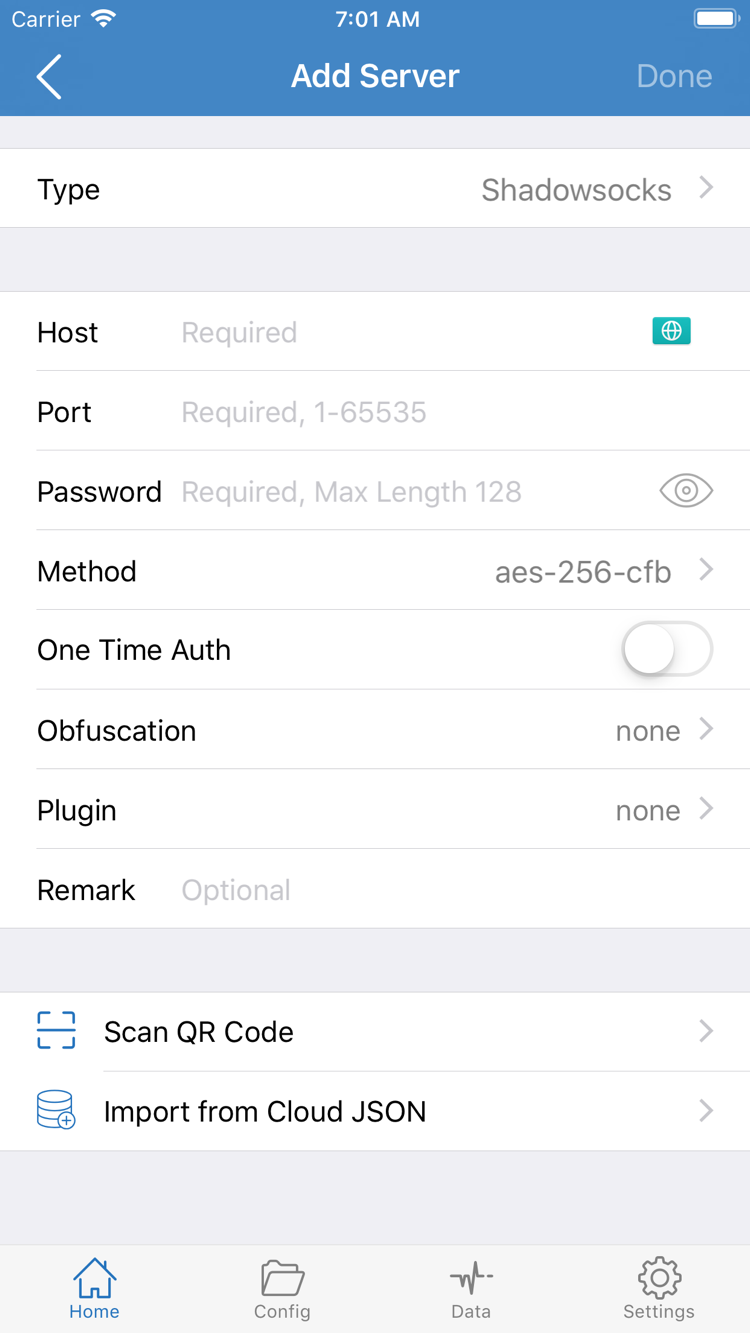
Add Server: Add a server or import a subscription
Open Shadowrocket, go to Home, find the SERVER group, and tap Add Server. First identify what you have: server parameters to enter individually, a QR code for one server, or a subscription link for updating a group of servers. Choose the matching method for your details; there is no need to add a server individually and then import a subscription that already contains it.
Have server details? Enter them under Type
First select the protocol provided by your service provider under Type. The form adjusts to the selected protocol. Enter the server hostname or address in Host and the port number in Port. If the selected type shows Password, Method, or other authentication and transport fields, enter the details as provided. Do not enter parameters for a different protocol. Host accepts only the host portion; do not paste a webpage prefix, the full subscription link, or the port here. If you are unsure about a field, check the original details instead of trying a similar option.
Add by QR code: Use Scan QR Code
If you have a server QR code, display it on another screen and tap Scan QR Code at the bottom of Add Server. When prompted for camera access for the first time, allow it, then point the camera at the full code with clear space around all four sides. After it is recognized, check that Type and Host match the original details before saving. If you only have an image on your phone and cannot display it on another screen, use your existing text parameters or subscription URL instead.
Import a subscription: Select Subscribe under Type
If you have a subscription link, select Subscribe under Type, paste the complete URL into the URL field, and save. Query parameters at the end of the link may be required to identify the subscription; do not remove them. Do not copy line breaks displayed by a browser or quotation marks from a chat message. Import from Cloud JSON is a separate import option, not the same as Subscribe.
Return to Home and check the new entry under SERVER. A single server should appear as an entry; for a subscription group, expand it and confirm that it contains selectable entries. If the group name appears without any servers, check the subscription in Step 5 rather than toggling the connection switch to refresh it. Once the list contains a selectable server, choose how to route traffic.
Global Routing: Choose how traffic is handled
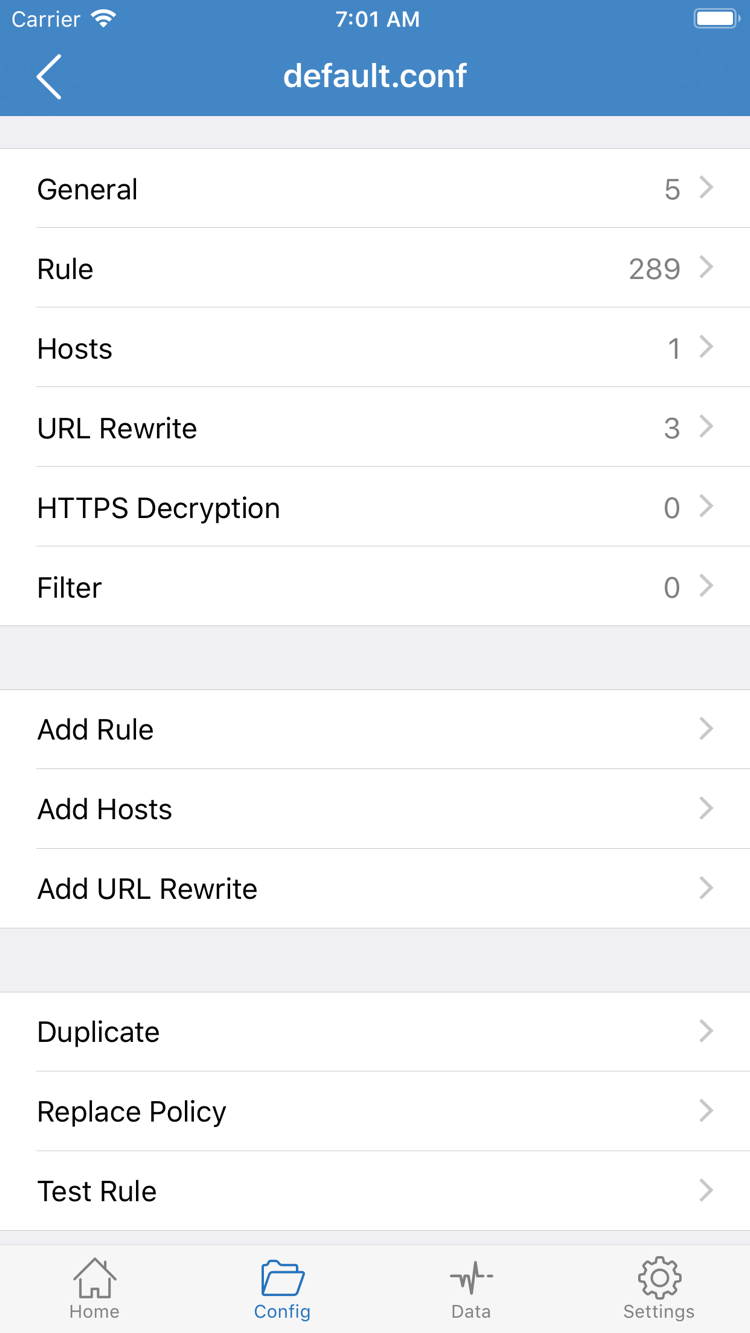
Tap Global Routing on Home. This setting determines how traffic is handled, not which server is selected. Understand what each of the three options does so you do not mistake a mode change for a server recovery while troubleshooting.
- Config: Match requests against the currently enabled configuration, rule by rule. Use this when a working configuration is available and you want different destinations handled by different policies.
- Proxy: Do not select a route for each request using the configuration's routing rules. During initial setup, briefly select this option to check whether the current server can access websites. After comparing results, switch back to your usual mode.
- Direct: Requests do not go through a proxy server. If a webpage will not load, use this option to compare access over the current network itself; successful direct access does not mean the selected server is working.
If you select Config, check which file is actually enabled at the bottom under Config. The Rule section in a file's editor shows matching entries, and Add Rule adds rules. For a first setup, review the rules without changing them just to run a test. Being able to open a file in the editor does not mean it is currently used for routing. Return to the configuration list to confirm the enabled item, then check Global Routing on Home.
For example, a rule can use DOMAIN-SUFFIX to match a domain suffix and direct matching traffic to a policy such as PROXY or DIRECT. FINAL is commonly used for traffic that does not match any preceding rule. Rule order affects which rule matches, so the presence of a particular line in the configuration is not enough. To test the connection for the first time, you can use Proxy for comparison. If you normally use Config, switch back after testing and check the same webpage again.
Home: Select a server and turn on the switch
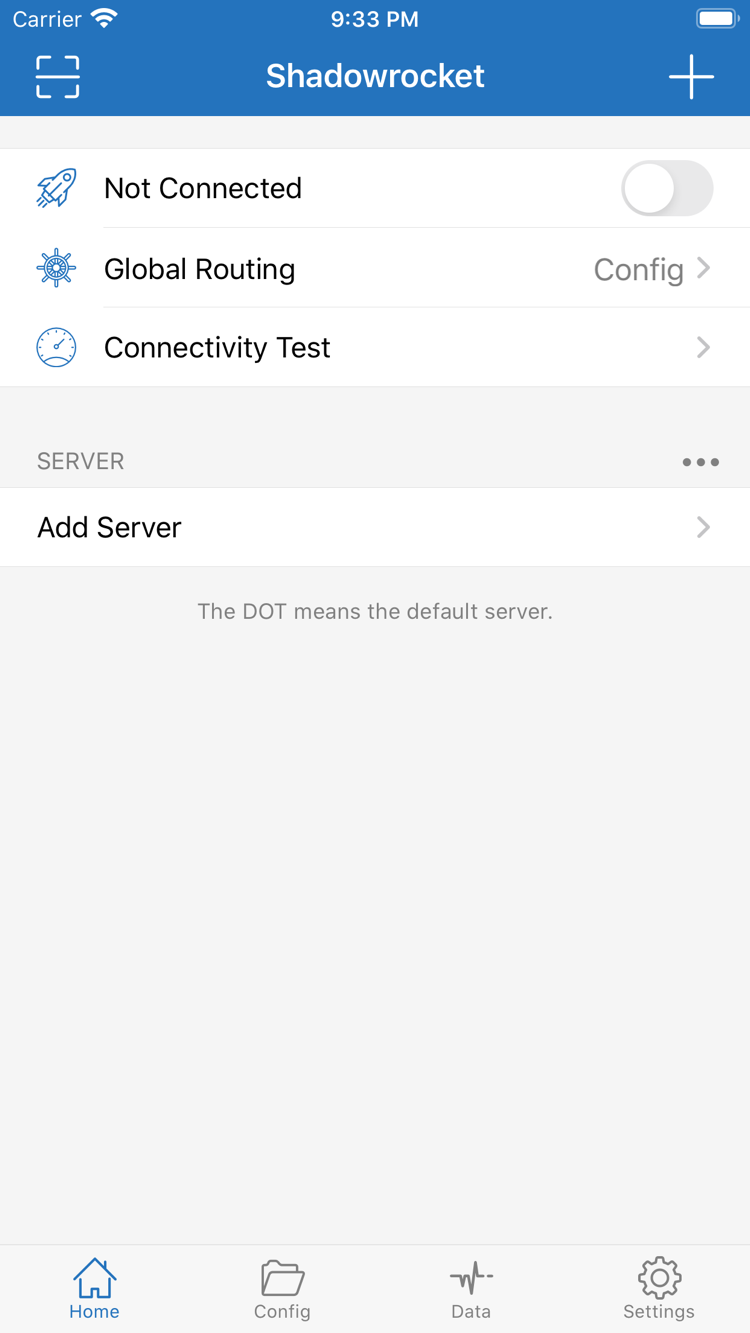
Return to Home and select a server under SERVER. If the entry is from a subscription, expand the group and select an individual entry; selecting the group title is not the same as selecting a server. Confirm that the selected entry is the one you want to test, then check Global Routing and note the current mode. This makes it easier to tell whether a later change affected the rules or the server.
Turn on the switch next to Not Connected at the top of Home. When connecting for the first time, iOS or iPadOS may display a system prompt to add a VPN configuration. Confirm that the request is from the Shadowrocket app you just opened, then approve it in the system dialog. If the device asks you to authenticate, follow its instructions. After granting permission, return to Home and wait for the connection status to change. If you previously cancelled the request, or the device is managed by an organization, first check in system settings that a VPN configuration exists and is allowed. Do not repeatedly tap the switch.
If the switch stays on, the local connection has started, but that does not confirm that the remote server is reachable or that webpages are being handled by the intended rule. Do not change the Wi-Fi network and server at the same time. Keep the current network, server, and Global Routing setting, then proceed to the next step. If the switch quickly turns off again, note any system prompt and go to the troubleshooting steps to check permissions or connection conflicts.
Connectivity Test: Check test results and webpage access separately
Tap Connectivity Test on Home and check whether the server you selected returns a result. If the list contains multiple results, compare them with the entry selected on the Home screen; do not mistake the latency of an adjacent entry for the result of this connection. A test value applies only to that one probe, under the current network and test method. If there is no result, first check whether it affects one entry or all entries in the same group, then decide whether to check the individual details or the network.
Next, use a browser to open a webpage you know is working and that requires an internet connection. Do not rely on a page that was already open: the browser may display cached content and make a failed request look successful. Open a new tab and refresh. If the webpage requires a login, first test with a public page that does not contain personal information. Successful browser access confirms that this particular request completed; it is a separate observation from seeing a test result on Home.
If you normally use Config, compare results using the same webpage, server, and network: first check the result in Config, then briefly switch to Proxy and test again if needed. If Proxy opens the page but Config does not, check the enabled file and relevant rules under Config instead of immediately switching servers. If needed, use Direct or turn off the connection for a baseline comparison. When finished, switch back to your usual mode so the test mode is not left on Home.
Record four things: the current network, the local note for the selected server, the routing mode, and the separate results for the test and webpage. When changing networks, keep the other conditions the same; when changing servers, keep the network and mode the same. This makes it easier to identify which change affects the result if the issue happens again. See Latency Test settings for details about test types and latency values.
Settings: Troubleshoot based on where the issue occurs
Subscription group is empty or has no entries after an update
First confirm that you used Subscribe and did not enter the full link in Host. Return to Home and manually update the original subscription once, then expand the group to check the result. If it is still empty, check the full URL against the original details, especially the final characters and query parameters. Once you have confirmed the URL is complete, ask your service provider whether the subscription is still valid and whether its response format is compatible with the client. Keep any existing working entries; there is no need to delete other records to test one subscription.
Switch will not stay on or reconnects later
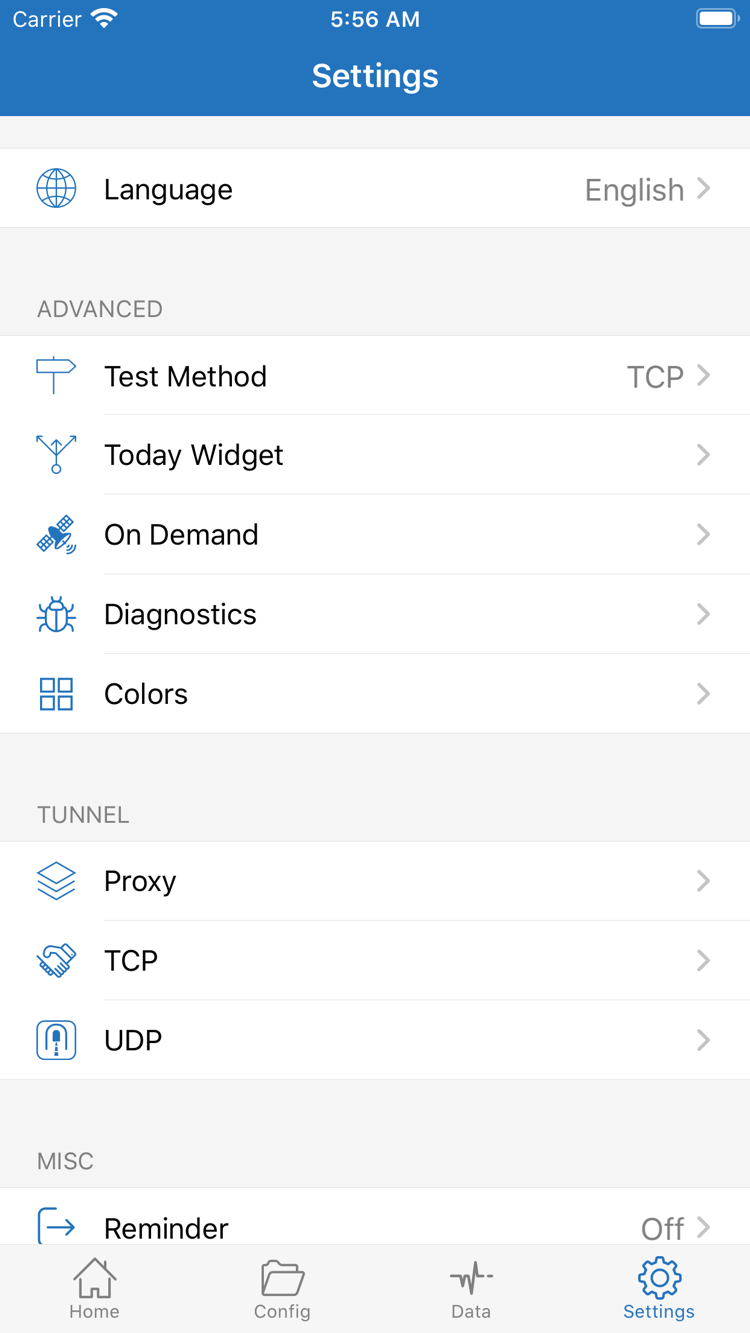
Check whether the system allows VPN configurations to be added, then confirm whether another VPN is already running on the device. If a management policy applies, follow the device management requirements and do not remove configurations you do not recognize. If the connection starts again after you turn it off manually, open On Demand under Settings and check whether the current Wi-Fi or Cellular connection meets its configured conditions. Identify what triggers the connection before changing your own on-demand settings.
Test fails, or succeeds but webpages will not load
If several servers return no results, first disconnect and use a browser to check whether the current Wi-Fi or Cellular network can access webpages. If public Wi-Fi requires a web login, complete network access first, then return to Home and test the same server again. If only one server returns no result, recheck its protocol, Host, Port, and the authentication and transport details provided by your service provider. Before comparing two results, you can also check Test Method under Settings to make sure the same test method is being used.
If Connectivity Test returns a result but webpages will not load, first determine whether one or multiple domains are affected, then use the mode comparison in Step 4 to distinguish a rules issue from an access issue. A probe result does not confirm that a domain resolved successfully or that a website will accept the connection. Open Diagnostics under Settings to review related errors. When sharing troubleshooting details, include only the observed issue, mode, and necessary messages; hide subscription URLs, QR codes, passwords, and internal addresses. For a closer look at resolution settings, follow the DNS settings reference and record the original values before making changes. Decide whether to keep any changes after testing.
Get Shadowrocket for other devices
The iPhone / iPad app is a one-time $2.99 purchase on the App Store; check the App Store page for system requirements. Mac (Apple silicon and Intel), Windows, Android, and Linux editions are free from this site. On Mac, check About This Mac first to choose the right installer. If a system prompt appears during the first installation, check the source and applicable approval steps in the installation instructions for each platform.
The link shown depends on your current device. To get the app for another device, choose “All platforms.”